> ## Documentation Index
> Fetch the complete documentation index at: https://docs.perpetradex.xyz/llms.txt
> Use this file to discover all available pages before exploring further.
# Placing Orders
> How to open a position on Perpetra
Every trade on Perpetra starts from the order panel. This page walks through each field and what it does.
## The order panel
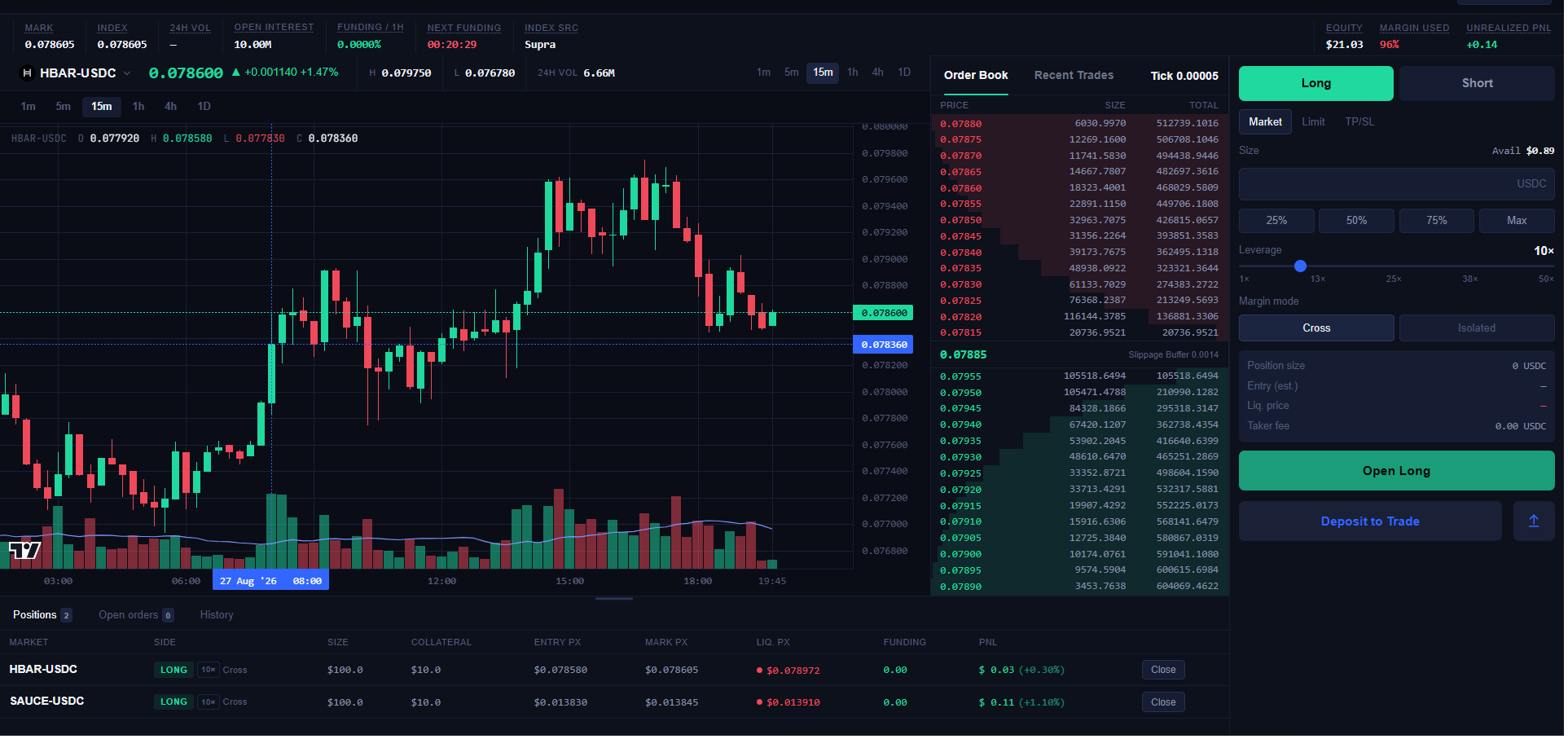 Pick from Perpetra's [supported markets](/get-started/supported-markets).
Each market is quoted against USDC. The header bar above the chart shows the
market's mark price, index price, 24h volume, open interest, current funding
rate, time until next funding, and the index price source (Supra, Chainlink,
or SaucerSwap TWAP depending on the market).
Long or Short, at the top right of the order panel.
Market, Limit, or TP/SL. Market fills immediately against the best available
price. Limit rests on the book at your chosen price until it fills. The
TP/SL tab is visible but not functional yet. See [Order Types &
Reduce-Only](/trading/order-types-and-reduce-only) for the full breakdown.
Enter your position size in USDC, or use the 25% / 50% / 75% / Max
quick-select buttons to size against your available balance.
Drag the leverage slider (1x to 50x) to choose how much of the position is
backed by your collateral versus borrowed exposure. Higher leverage means a
smaller price move against you will trigger liquidation. See [Positions &
Margin](/trading/positions-and-margin).
Cross or Isolated. This determines whether your collateral is shared across
positions or walled off per position. See [Margin
Modes](/trading/margin-modes).
Before submitting, review the order info section: position size, estimated
entry price, liquidation price, and taker fee. Confirming the order (Open
Long / Open Short) prompts your wallet to sign an EIP-712 message. No gas is
charged at this step.
If you haven't deposited collateral yet, the submit button shows **Deposit to
Trade** instead. See [Deposits &
Withdrawals](/trading/deposits-and-withdrawals).
## What happens after you sign
Your signed order goes to Perpetra's matching engine. If it matches immediately, you'll see a toast notification as the fill settles on-chain. If it's a limit order that doesn't match right away, it rests on the book until a counterparty fills it, and you can see it under **Open Orders**.
For the full mechanics of what happens between signing and settlement, see [How Perpetra Works](/get-started/how-it-works).
## Closing a position
Closing works the same way as opening, in reverse. From the **Positions** panel, choose close (in full or partially), and it's submitted the same way: a signed order matched against the book. A reduce-only order is used under the hood so the close can never accidentally flip into a new position on the opposite side. See [Order Types & Reduce-Only](/trading/order-types-and-reduce-only).
Pick from Perpetra's [supported markets](/get-started/supported-markets).
Each market is quoted against USDC. The header bar above the chart shows the
market's mark price, index price, 24h volume, open interest, current funding
rate, time until next funding, and the index price source (Supra, Chainlink,
or SaucerSwap TWAP depending on the market).
Long or Short, at the top right of the order panel.
Market, Limit, or TP/SL. Market fills immediately against the best available
price. Limit rests on the book at your chosen price until it fills. The
TP/SL tab is visible but not functional yet. See [Order Types &
Reduce-Only](/trading/order-types-and-reduce-only) for the full breakdown.
Enter your position size in USDC, or use the 25% / 50% / 75% / Max
quick-select buttons to size against your available balance.
Drag the leverage slider (1x to 50x) to choose how much of the position is
backed by your collateral versus borrowed exposure. Higher leverage means a
smaller price move against you will trigger liquidation. See [Positions &
Margin](/trading/positions-and-margin).
Cross or Isolated. This determines whether your collateral is shared across
positions or walled off per position. See [Margin
Modes](/trading/margin-modes).
Before submitting, review the order info section: position size, estimated
entry price, liquidation price, and taker fee. Confirming the order (Open
Long / Open Short) prompts your wallet to sign an EIP-712 message. No gas is
charged at this step.
If you haven't deposited collateral yet, the submit button shows **Deposit to
Trade** instead. See [Deposits &
Withdrawals](/trading/deposits-and-withdrawals).
## What happens after you sign
Your signed order goes to Perpetra's matching engine. If it matches immediately, you'll see a toast notification as the fill settles on-chain. If it's a limit order that doesn't match right away, it rests on the book until a counterparty fills it, and you can see it under **Open Orders**.
For the full mechanics of what happens between signing and settlement, see [How Perpetra Works](/get-started/how-it-works).
## Closing a position
Closing works the same way as opening, in reverse. From the **Positions** panel, choose close (in full or partially), and it's submitted the same way: a signed order matched against the book. A reduce-only order is used under the hood so the close can never accidentally flip into a new position on the opposite side. See [Order Types & Reduce-Only](/trading/order-types-and-reduce-only).